
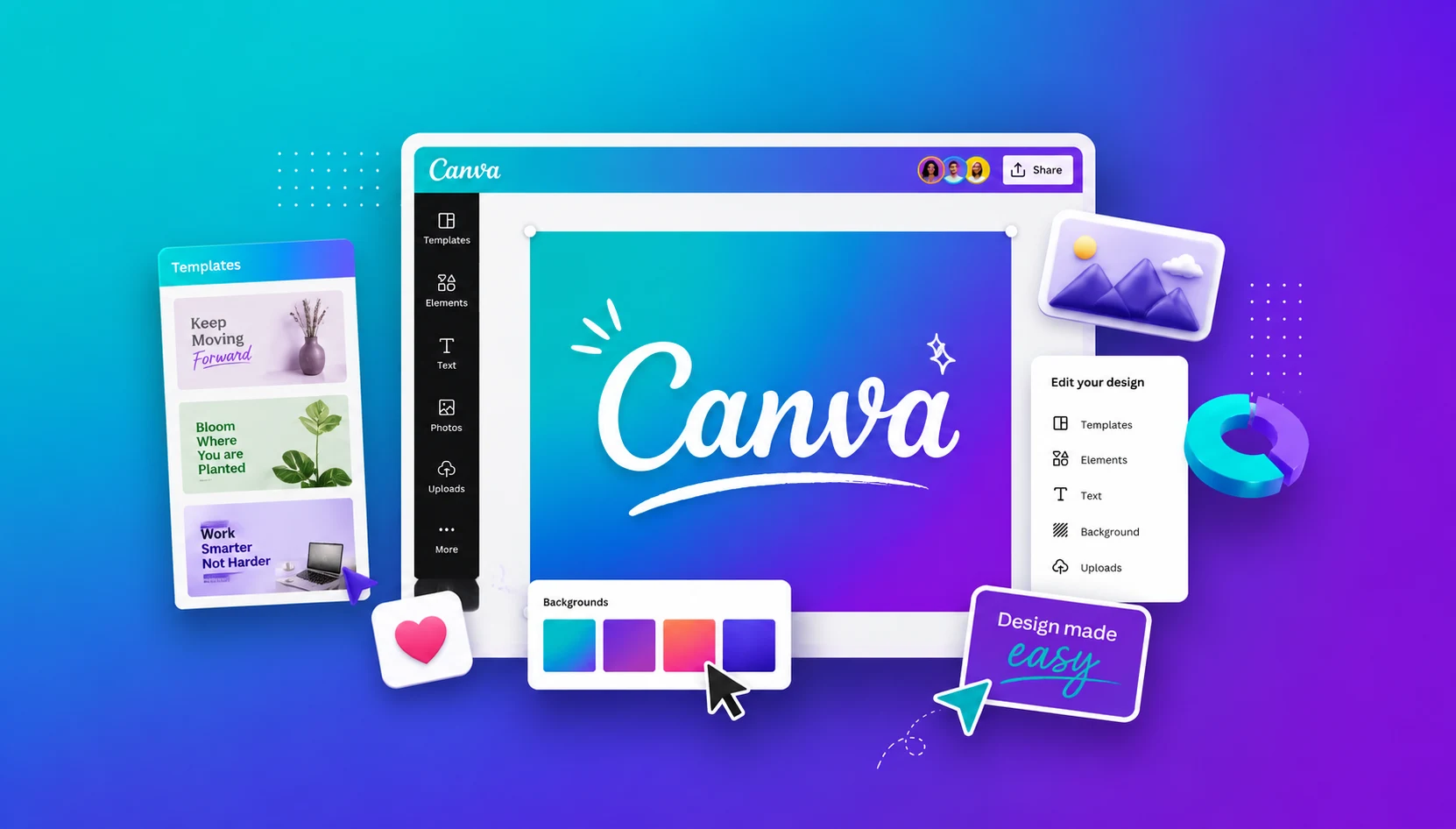
You’ve probably seen someone say, “I made it on Canva,” whether it’s a viral Instagram post, a resume, a YouTube thumbnail, a wedding invitation, a business presentation, or even a full ebook. That’s because Canva has become the go-to design platform for literally everyone — students, creators, small businesses, marketers, teachers, and even people who have zero design experience.
Now’s the best part: You don’t need to learn complicated software to make professional-looking graphics anymore. In this guide, we’ll cover what it is, pricing, features, free vs pro, uses, tips & tricks, common mistakes, pros and cons, comparisons with other platforms, and everything people actually want to know before using it.
What is Canva?
basically anything graphic design related. It has surprisingly become even more popular among beginners in designing because it has tons of features along with templates that give you a head start.
Canva was launched in 2013 by Melanie Perkins, Cliff Obrecht, and Cameron Adams in Sydney. It quickly became one of the most popular design platforms in the world because of its simplified interface. It is growth has been massive over the last decade. It went from a small startup to one of the biggest creative platforms in the world. The growth we saw was unbelievable, from 24 million users in 2019 to 135 million in 2023. And as of 2026, It has reported 265+ million users. Of which over 31 million are paid users. Talking about its revenue, Canva editing tool has surpassed $4 billion by early 2026.

This is extremely popular among not just design enthusiasts but also creators, teachers, small business owners, students, and almost everyone who wants to design something.
Canva Price: Free vs Paid Plans
One of the most searched questions is about pricing. If it is worth it, and what is the difference between the two anyway?
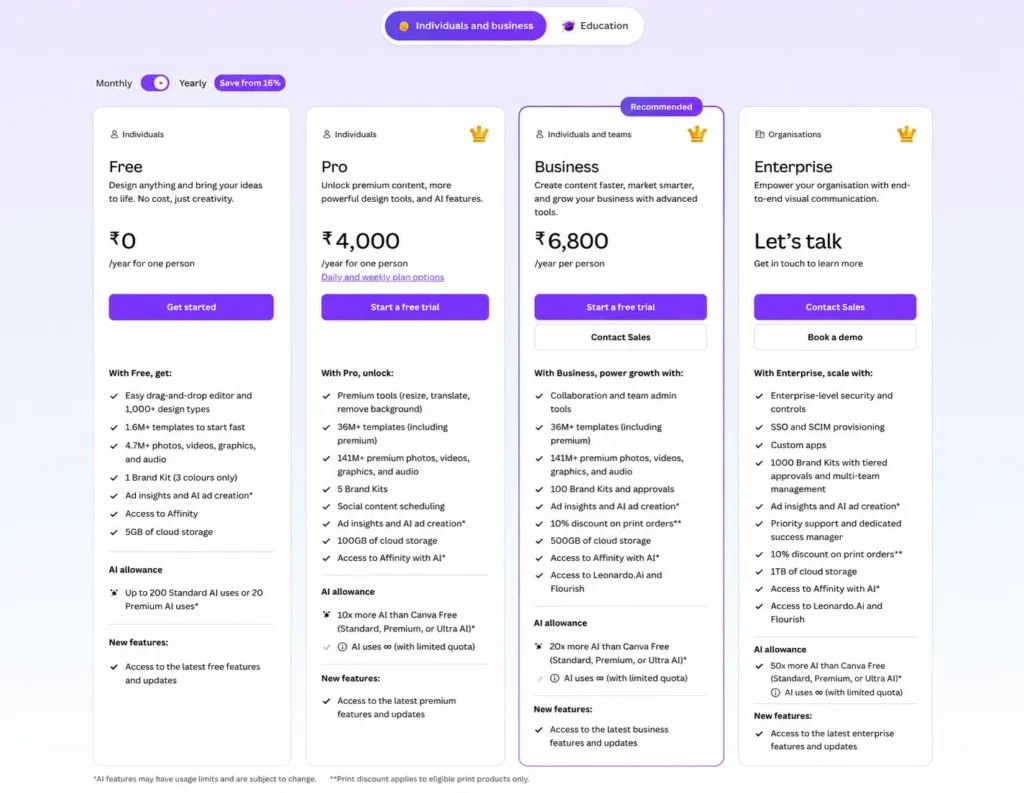
Canva price breakdown
| Feature | Free Plan | Canva Pro | Canva Teams | Canva Enterprise |
| Monthly Price | $0 | Around $12.99–$15/month | Around $10–$20/user/month | Custom pricing |
| Annual Price | Free forever | Around $120/year | Varies by team size | Custom |
| Best For | Beginners & casual users | Creators & freelancers | Businesses & teams | Large organizations |
| Number of Users | 1 | 1 | Multiple users | Large teams |
| Templates | 250K+ free templates | 600K+ premium templates | All premium templates | All premium templates |
| Stock Photos & Videos | Limited | 100M+ premium assets | 100M+ premium assets | Full library |
| Cloud Storage | 5 GB | 100 GB–1 TB | 1 TB | Unlimited |
| Brand Kits | Limited or none | Up to 100 brand kits | Advanced team brand kits | Unlimited/custom |
| Custom Fonts | No | Yes | Yes | Yes |
| Background Remover | No | Yes | Yes | Yes |
| Magic Resize | No | Yes | Yes | Yes |
| AI Tools (Magic Studio) | Limited access | Full AI access | Full AI access | Advanced AI tools |
| AI Image Generation | Limited | Yes | Yes | Yes |
| Collaboration Tools | Basic | Basic | Advanced collaboration | Enterprise collaboration |
| Approval Workflows | No | No | Yes | Yes |
| Team Roles & Permissions | No | No | Yes | Advanced controls |
| Admin Dashboard | No | No | Yes | Yes |
| Analytics & Insights | No | No | Yes | Advanced |
| Priority Support | No | Limited | Yes | Dedicated support |
| Single Sign-On (SSO) | No | No | Limited | Yes |
| API Access | No | No | Limited | Yes |
| Security Controls | Basic | Standard | Advanced | Enterprise-grade |
Canva Features That Make It Stand Out
It always comes down to how smooth the user experience is, and It has delivered a simplified yet very useful interface that works well for seasoned designers and casual users. This is possible only because of some amazing Canva features, as they are pretty well thought out and get a constant revamp with the changing tech. This is loaded with features, some you might know, while others are just hiding in plain sight. There are so many features to discover with Canva editing tool that you will be surprised.
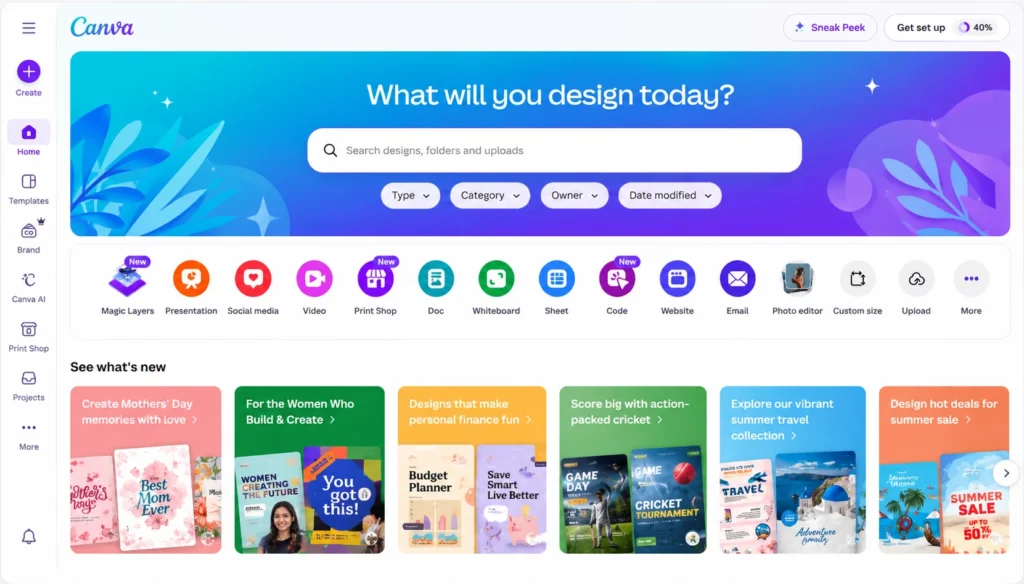
Drag-and-Drop Editor
You can freely move all templates around without worrying about margins and spacing. You get spacing guides to make sure everything is aligned properly.
Massive Template Library
Canva has a huge collection of templates; no matter what the event is or the aesthetic you need, you will find it on Canva. The best thing about these templates is you dont have to start from scratch, you can change the colors, add your own elements.
Stock Photos & Videos
It gets kind of annoying when it comes to downloading a bunch of different images and videos for your projects, visiting 10 different sites looking for the perfect picture; well, a lot of time gets wasted. But with Canva Features, you get Stock Photos & Videos you can use freely. Just search it up, and there you have it.
AI Tools in Canva
You can now use AI with other it features. Its AI integration is a fairly new, promising feature. It can do everything you can think of—
- Magic Write
- Background remover
- AI image generation
- Instant resizing
- AI presentation generation
Video Editing
It also supports video editing, and it works amazingly well. Along with basic video editing, you can add effects, filters, transitions, and more.
Canva Free vs Pro
Now talking about Canva Free vs Pro, the free version is not a trial; it comes with a few tools, and you can pretty much still create designs with it. But there’s no doubt that Canva Pro is better and has all the features available. For Free vs Pro, you should know what is not included in the free version. Here is a quick list so you can have a clear Free vs Pro comparison-
- Background remover
- Magic Resize
- Premium templates
- Premium stock library
- Transparent PNG downloads
- Advanced AI tools
- Brand kits
- Social media scheduler
- SVG export
- Advanced collaboration tools
Refer to the above table to get the this Price and what you get in the Free vs Pro plans.
Canva Uses: What People Actually Create
You can use It for all things design. This is a “visual suite,” meant to be your end-to-end design partner. The best thing when it comes to Canva Uses is that, from students who want to design a project to serious content creators, anyone can use Canva editing tool. It can have endless use case scenarios. Here are all the uses you should know about-
Social Media Content
The most common of it uses has to be its popularity among social media graphics designers.
- Instagram carousels
- TikTok thumbnails
- Pinterest graphics
- YouTube banners
- Facebook ads
Business & Marketing
It’s a saviour for small businesses, from cafes to clothing no matter what category you work on you will find it on that.
- Presentations
- Flyers
- Menus
- Email banners
- Brand kits
- Product promotions
Student & Education Projects
Students again use this to express their creativity in projects.
- Presentations
- Posters
- Infographics
- Reports
- Portfolios
- Book Covers
Canva Tips & Tricks Most Beginners Don’t Know
Oftentimes, we keep using the same app, over a course of time, and we hardly get to explore all its features. We get comfortable with what we know and make do with whatever is at hand. But with these Canva Tips & Tricks, you can use it to its full capacity. These Tips & Tricks are especially useful for beginners because It has a bunch of features, and without knowing what all it can do for you will be too quick to make a switch.
So here are Tips & Tricks you must know-
Use Brand Kits
This feature lets you create your own brand color kit. If you want to have a cohesive look, then just set a theme, and you can reuse it over and over again for building a brand image. Along with colors, you can also set a font and theme in place.
Learn Keyboard Shortcuts
With shortcuts, it will become super efficient for you to use editing tool. From adjusting layers to grouping and ungrouping. You also have shortcut keys for adding shapes and text.
Use Grids for Better Layouts
A must-do when it comes to proper design layout. Use grids for proper spacing.
Don’t Overuse Fonts
Stick to one or two fonts per design. Using too many fonts only makes the design look messy.
Resize Instead of Recreating
Magic Resize is one of its is best features. You can change the same template you designed for various social media orientations.
Watch a YouTube video before starting to use Canva
Watching a tutorial on it will also help you understand all the different features.
Canva Common Mistakes Beginners Make
After Tips & Tricks, you must know the common mistakes that people usually make. They end up wasting their time and misunderstanding the app completely.
Using Too Many Elements
Adding too many elements at once will only make it crowded and far from appealing.
Ignoring Alignment
Again, make sure to align all your elements in place. From texts to images, everything should have equal spacing.
Overusing Effects
Glow effects, shadows, and animations can quickly make graphics look outdated. Minimal designs usually perform better.
Forgetting Mobile Optimization
Always see how your design would look in perspective.
Copying Templates Without Customization
Templates are helpful, but if you barely change anything, your content may look generic.
Canva Pros and Cons
That has its own share of pros and cons that users have highlighted over time-
Canva Pros
- Extremely Beginner-Friendly
- Huge Template Library
- Affordable
- Works on Browser & Mobile
- Fast Learning Curve
Canva Cons
- Limited Advanced Editing
- Some Templates Feel Overused
- Pro Features Can Add Up
- Internet Connection Needed
Canva vs Other Design Platforms
Apart from Canva review, there are a bunch of other designing software in the market, some of them are positioned as professional designing tool ss where as canvca is good for beginners and intermediate level of designers. A lot of professional designers do use Canva editing tool , but they primarily rely on Adobe and others.
Let’s take a quick look at how this is different from other designing platforms like Adobe, Photoshop, and Figma.
Canva vs Adobe Express
| Feature | Canva | Adobe Express |
| Ease of Use | Easier | Moderate |
| Templates | Huge library | Good selection |
| AI Features | Strong | Strong |
| Advanced Editing | Limited | Better |
| Beginner-Friendly | Excellent | Good |
Canva vs Photoshop
| Feature | Canva | Photoshop |
| Learning Curve | Easy | Difficult |
| Professional Editing | Limited | Advanced |
| Speed | Fast | Slower |
| Templates | Extensive | Minimal |
| Best For | Everyday creators | Professional designers |
Canva vs Figma
| Feature | Canva | Figma |
| Collaboration | Good | Excellent |
| Excellent | Basic | Advanced |
| Social Media Content | Excellent | Limited |
| Ease of Use | Very easy | Moderate |
Conclusion: Is Canva Worth It?
For most people, yes, It is pretty decent. It works across social media platforms, it has AI integration, and a lot of templates that inspire you to create your own designs. Yes, there are a bunch of features that you only find in professional high-end design applications. But for editing tool, it has its own user base, who are not always designers, but just working professionals or creators.
This also innovated in the design space and met the gap between user interface and design. Not everyone has the time and skill to learn Adobe or Photoshop. It is quick and accessible to all, making it a favourite.
FAQs
Q. Is Canva really free to use?
A. Yes, Canva comes with a free plan. All you need to do is just sign up.
Q. What is Canva mainly used for?
A. Its mostly used for designing social media graphics, presentations, resumes, posters, videos, invitations, marketing materials, and content creation.
Q. Is Canva better than Photoshop?
A. Photoshop is an advanced professional photo editing software, and it does not work on the same principles as Adobe. So if you are looking for high-level photo editing, Photoshop is the way to go, but for beginners and use a friendly interface, choose it.
Q. Can you use Canva review for business purposes?
A. Yes, many businesses use Canva for branding, social media marketing, presentations, ads, and promotional materials.
Q. Is Canva Pro worth it?
A. Yes, it unlocks more templates and AI features like Magic eraser, resize and background remover.