

I still remember the first time Grammarly caught something I’d missed three times over. It was a client pitch email, ten minutes before sending, and the little red underline flagged a tone problem I genuinely couldn’t see myself; the email read as curt when I meant it to be confident. One click later, it landed exactly right.
That is the thing about Grammarly that’s largely ignored by most “how to use it” guides: the tool isn’t just a spell-checker anymore. In 2026, it’s closer to a writing partner that lives in your browser, your inbox, and your docs, and most people are only using about a third of what it can actually do.
This guide covers the editing shortcuts, setting tweaks, and lesser-known features that turn Grammarly from “the thing that underlines my typos” into a genuine speed tool for daily writing. Whether you’re a student polishing essays, a marketer turning around copy on deadline, or a freelancer juggling five clients’ worth of tone, there’s something here that will shave real minutes off your editing time.
What Grammarly Actually Does in 2026
Grammarly started as a simple grammar checker back in 2009. It’s not that anymore.

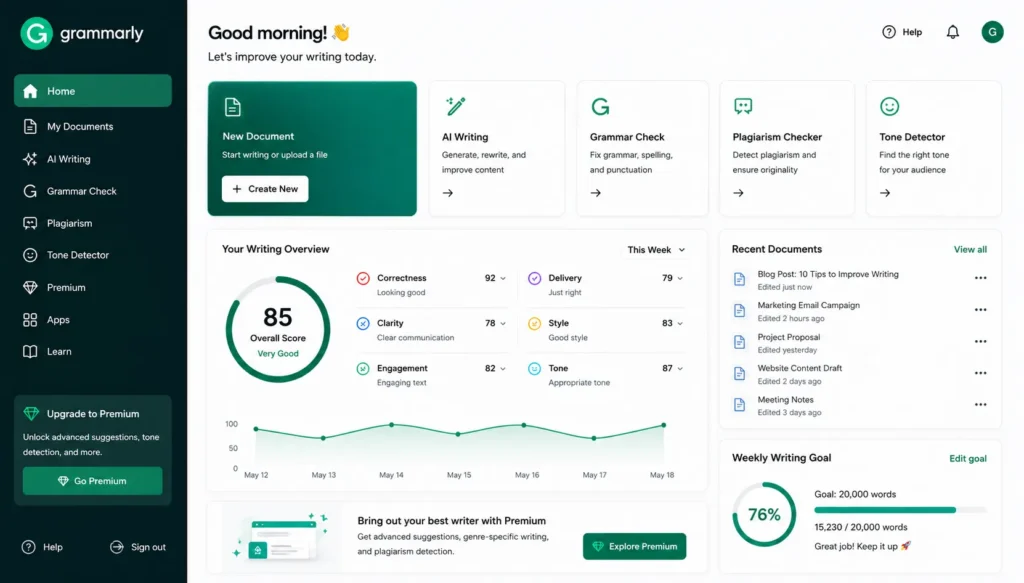
Today Grammarly combines real-time grammar and tone correction with a generative AI layer that can draft, summarize, and rewrite all without you leaving the app or browser tab you’re already working in. It runs as a browser extension, a desktop app, a mobile keyboard, and a plug-in inside Google Docs, Gmail, Slack, and Microsoft Office.
The basic idea hasn’t changed: Grammarly reads what you’re writing and flags what’s slowing your reader down. What has changed is how much it can now do about it, rewriting a clunky paragraph, changing tone on the fly, or drafting a reply when you’re staring at a blank box.
If you’ve only ever used Grammarly to fix typos, you’re leaving most of its value on the table. Here’s how to actually use it.
Best Grammarly Tips and Tricks for Faster Editing
These are the habits that make the biggest difference in day-to-day editing speed, not just “turn it on,” but how to actually use Grammarly like someone who edits for a living.
1. Set Your Goals Before You Start Writing
Before you type a word, click the Goals icon in the Grammarly sidebar and set your audience, formality, domain, and intent. A legal memo and a LinkedIn caption need completely different suggestions, and Grammarly’s accuracy improves dramatically once it knows which one it’s looking at.
Skipping this step is the single biggest reason people feel like Grammarly’s suggestions are “off.” It’s not that it’s broken, but it doesn’t know the context yet.
2. Use the Browser Extension Everywhere, Not Just in Docs
Most people install Grammarly for Google Docs and stop there. The bigger win is allowing it to run through Gmail, Slack, LinkedIn, and your CRM. A vast majority of daily writing, replies, comments, and quick updates happen outside a “real” document, and that’s where typos and tone slips do the most damage.
3. Learn the Keyboard Shortcut for Quick Accept
Rather than clicking every suggestion individually, most desktop and browser versions enable you to cycle through and accept fixes with a keyboard shortcut. It’s small, but over the course of a long document it’s the difference between a five-minute pass and a twenty-minute one.
4. Use Full-Sentence Rewrites on Your Weakest Paragraph First
When a sentence is clunky but you can’t figure out why, highlight it and let Grammarly’s rewrite tool take care of it. It won’t replace your voice, but it’s incredibly effective at sorting out sentences you’ve been staring at too long to fix yourself. Use this on your roughest paragraph first, it’s usually the one costing you the most editing time.
5. Adjust Tone Instead of Rewriting From Scratch
If a draft reads too harsh, too stiff, or too casual, you don’t need to rewrite it. Grammarly’s tone adjustment will rephrase the same content to land “diplomatic,” “confident,” or “empathetic” without losing your original meaning. This is especially useful for client emails where the information is good but the delivery needs to be softened.
6. Build a Library of Snippets for Repeated Text
If you find yourself typing out the same response, intro, or sign-off more than twice a week, turn it into a Snippet. One shortcut, full text inserted. Teams on paid plans can even develop dynamic snippets with dropdowns and fillable fields, useful for support replies or onboarding emails that need some slight adjustments each time.
7. Use Generative AI for Outlines, Not Finished Drafts
Grammarly’s generative AI assistant is actually useful for breaking writer’s block; ask it for an outline, a first-draft reply, or a few headline ideas. Where it falls short is long-form content; it isn’t designed to write a complete article the way a dedicated content generator is. Use it to get unstuck, then write the real version yourself.
8. Run the Plagiarism Check Before You Hit Publish
This step gets skipped constantly, especially under deadline pressure. A quick plagiarism pass takes seconds and catches accidental overlap with source material you researched, a real risk for anyone juggling multiple references while writing.
9. Check Your Weekly Performance Insights
Grammarly quietly tracks your most common mistakes over time. This weekly glance shows you exactly which habits to fix at the source, comma splices, passive voice, whatever it is, instead of correcting the same error one sentence at a time forever.
10. Customize Brand Voice if You Write for a Team
If multiple people are writing under one brand name, set up Brand Voice or shared style guide settings. It keeps tone and terminology consistent across writers without anyone having to memorize a style manual.
Grammarly Features Most People Never Turn On
Grammarly’s 2026 update took it well past basic correction, and a few features are truly underused:
- Tone Rewriter: pivots an entire message between diplomatic, confident, or enthusiastic registers without changing the underlying message.
- Smart Drafts: generates a starting draft directly from a prompt, useful for emails and short-form copy.
- Contextual document awareness: Grammarly now adjusts its suggestions based on whether you’re writing a contract, a Slack message, or a blog post, rather than treating every document the same way.
- Expanded multilingual support: real-time grammar and tone checking now covers more languages beyond English, useful for teams writing across regions.
- AI text detection: flags content that looks AI-generated, useful for educators and editors who need a first-pass check (though it’s not foolproof against lightly edited AI text).
None of these require an upgrade beyond what most users already have; they’re just buried in menus people don’t explore.
Grammarly Pricing in 2026: What You Actually Get
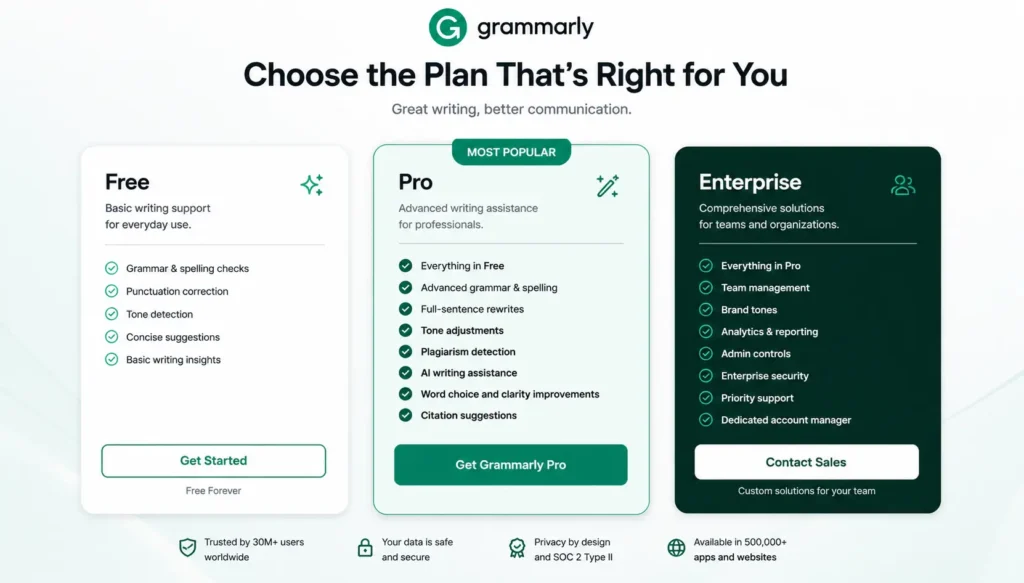
Grammarly’s pricing structure simplified in 2026, with the old “Premium” and “Business” names folded into a single Pro tier.
| Plan | Price | Best For | Key Features |
| Free | $0 | Casual writers, students, and users doing quick writing checks | Basic grammar and spelling corrections, tone suggestions, and up to 100 AI prompts per month |
| Pro | $12/month (billed annually) or $30/month (billed monthly) | Professionals, marketers, content creators, and regular writers | Full-sentence rewrites, plagiarism checker, AI detection, tone rewriter, brand voice tools, and up to 2,000 AI prompts per month |
| Enterprise | Custom pricing | Large teams and organizations | SSO, admin controls, unlimited AI usage, advanced security, compliance features, and dedicated account management |
A quarterly Pro option is also available at $60 per quarter (about $20/month), sitting between the monthly and annual rates. Students and educators can generally get 50% off Pro through verified ID programs, and teams of 10 or more can request invoicing instead of card payment.
One thing worth knowing before you subscribe: Grammarly’s billing is generally non-refundable, and the free trial converts to a paid annual plan automatically if you forget to cancel, so set a reminder if you’re just testing Pro.
Grammarly vs Competitors: Quick Comparison
If you’re deciding whether Grammarly is the right tool for you or just the most heavily marketed one, here’s how it stacks up against two common alternatives.
| Tool | Starting Price | Strongest For | Trade-off |
| Grammarly | Free / $12 per month (Pro) | English-first writing, tone control, and browser-wide integration | Less suited to long-form content generation |
| ProWritingAid | ~$120/year or $399 lifetime | Long-form manuscripts, authors, and professional editors | AI rewriting features are less polished than competitors |
| LanguageTool | ~$4.99/month | Multilingual writing support at a lower cost | Lighter feature set compared to Grammarly Pro |
If your writing is mostly English-language business or web content and you want AI rewriting plus plagiarism checks in one place, Grammarly tends to win. If you write in multiple languages or want the lowest possible monthly cost, LanguageTool is worth a look.
Mistakes That Slow Down Your Grammarly Workflow
A few habits quietly waste time Grammarly is supposed to save:
- Accepting every suggestion without reading it. Some of the tone or clarity suggestions don’t quite represent what you are trying to do; skim before accepting, especially on anything client-facing.
- Never update your Goals settings. Writing a casual social caption with “formal” settings still on from your last work memo leads to suggestions that don’t match what you are actually doing.
- Treating the AI humanizer as an AI-detector bypass. Grammarly itself says that this is not the tool’s goal, and relying on it for academic submissions is a real risk, not a shortcut. Ignoring the weekly insights. Not doing this means fixing one mistake over and over again, not once.
Conclusion
Grammarly’s biggest upgrade in 2026 isn’t really a new feature; it’s how much faster editing can be done if you use the tool instead of just reading the text. Set goals, lean on tone adjustment instead of full rewrites, build a snippet library for repeated text, and do a quick plagiarism check before you go live.
None of these tips require the most expensive plan or a steep learning curve. They simply need Grammarly to be used in the way it is built for it, as an editing partner, not a spell-checker you half-trust.
Frequently Asked Questions (FAQs)
1. Is Grammarly free to use, or do I need Pro?
A. The free version has real grammar, spelling, and basic tone checks and 100 AI prompts a month. It’s really applicable for casual writing. Pro provides full-sentence rewrites, plagiarism detection, and a much higher AI prompt allowance, which matters more once writing becomes part of your actual job.
2. Does Grammarly work outside Google Docs?
A. Yes. The browser extension works with Gmail, Slack, LinkedIn, and most web apps, and there are desktop and mobile keyboard versions, as well as Microsoft Office and Notion integrations.
3. Can Grammarly write an entire article for me?
A. Not reliably for long-form content. Its generative AI is good for outlines, short drafts and rewriting existing paragraphs, but it isn’t built to produce a complete, polished article the way dedicated content-generation tools do.
4. Will Grammarly get my writing flagged as AI-generated?
A. Grammarly’s grammar and tone corrections generally don’t trigger AI detectors, since you’re still writing the content. Text generated wholesale by its AI assistant is a different story and can get flagged, particularly by tools like Turnitin.
5. Is Grammarly Pro worth it for students?
A. If writing really does affect your grades or time, plagiarism checker and rewrite tools will pay for themselves, especially with the student discount that takes the annual plan down significantly. And for occasional, low-stakes writing, the free plan is often enough.