

 Shikha Kumari
Let me be unequivocal: the reason most people never fully unlock Zapier is not because it is complicated. It’s because nobody ever really showed them the right starting point. They land on the Zapier dashboard, see hundreds of app logos, and freeze. Sound familiar?
This guide is written for the person who’s heard the word “Zapier” a dozen times, maybe even signed up once, but never quite figured out what to actually build. By the time you reach the end, you’ll know exactly what Zapier is, how it works, what it costs in 2026, and, crucially, whether it’s worth your money.
We’ll go through the steps, the latest Zapier features, honest Zapier review insights, updated Zapier pricing, and a comparison of all these to their competitors. Let’s start building.
What Is Zapier, Really?
Zapier is a workflow automation platform that connects more than 7,000 apps to connect them all. It was one of the most important tools for people in the no-code movement in 2011 and it allows regular people to write software automations that would have previously required a programmer to do so.
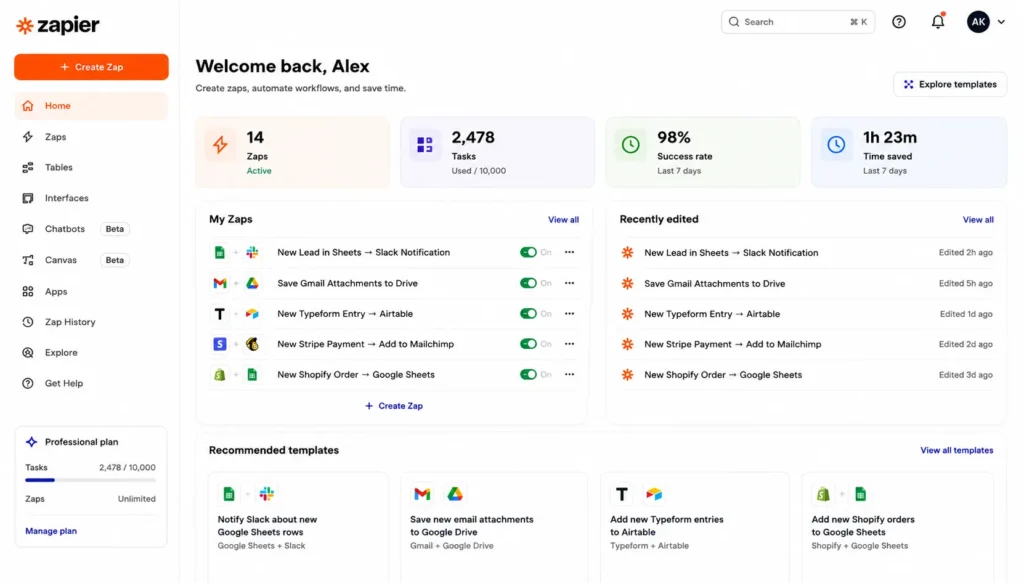
Think of it like a very smart assistant who watches your apps all day and reacts when something happens. When an event occurs in App A, Zapier automatically performs an action in App B (and C and D if you want). These automated workflows are called Zaps.
Zapier is more than trigger-action workflows by 2026. It has AI-powered Agents that can reason and act autonomously, a built-in AI safety layer called AI Guardrails, and deep integrations with LLM providers. The platform that started as a “connect Gmail to Slack” tool has come to be a genuine AI automation hub.
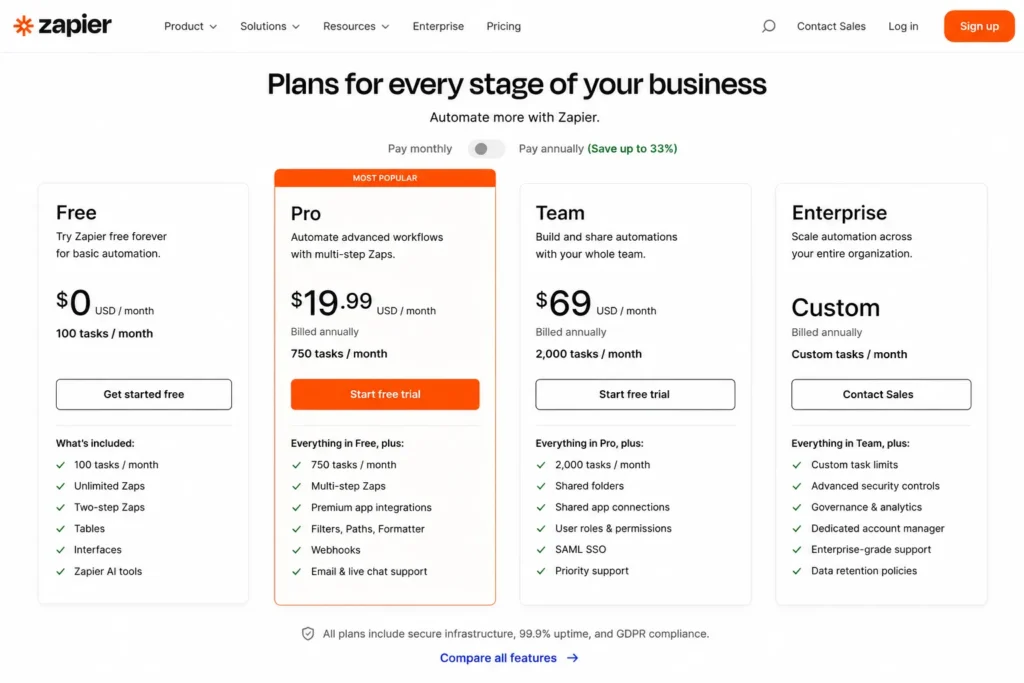
Zapier Price 2026: Every Plan Compared
Zapier’s pricing has made major changes in 2026. The free plan was cut off drastically, and AI-related features bring new costs for heavy users. Here’s the entire picture.
| Plan | Monthly Price | Annual Price (Effective) |
| Free | $0 | $0 |
| Starter / Professional | $29.99/month | ~$19.99/month (billed annually) |
| Team | $103.50/month | ~$69/month (billed annually) |
| Enterprise | Custom | Custom |
The Hidden Cost Problem
Task counting is where Zapier’s costs become tricky. A 5-step Zap that triggers + filters + 3 actions uses 3 tasks in Zapier. When your automations become more complex, you’re going to burn through tasks in Zapier much faster than you expect. Keep this in mind when you calculate your monthly needs.
Zapier’s 6,000+ app library is significantly larger than Make.com’s 1,500+. For common business apps like Google Workspace, Slack, HubSpot, Salesforce, Shopify, and Mailchimp, both platforms have full integrations, but for niche or specialized tools, Zapier is more likely to have native suppor
Zapier Features You Should Actually Know About
Zapier has evolved so much. Here are the features you need to know about, especially if you are trying to decide if the platform is worth the price.
Multi-Step Zaps
The ability to chain multiple actions after one trigger. This is what turns Zapier from a novelty into a business-critical tool. One trigger can update a spreadsheet, send a Slack notification, create a task in ClickUp, and email the client all at once. Available on all paid plans.
Filters & Conditional Logic
Only run a Zap when certain conditions are met. For example, trigger only if the email sender contains “@enterprise.com” or only if the deal value is greater than $5,000. Prohibits your automations from firing on every single event because you only care about a subset.
Paths (Branching Logic)
Create if/else decision trees inside a Zap. Path A triggers when a form submission says “New Client,” and Path B triggers when it says “Support Request.” This brings real business logic into your automations without code.
Zapier Tables
A built-in database tool that enables you to store, manage, and action data directly within Zapier workflows, without an external database like Airtable or Notion.
Zapier Agents (AI-Powered, 2025–2026)
One of Zapier’s most exciting recent additions. Agents are AI-driven workflows that can reason about what to do next rather than following rigid if-then logic. You describe a goal in plain language, and the agent figures out the steps. Think of it as giving your automation a brain, not just a schedule.
AI Guardrails (New in 2026)
A built-in safety layer that screens AI-generated output before it’s sent through your workflow. Zapier’s AI Guardrails is a new built-in app that adds safety checks to any Zap, with all checks returning structured outputs so you can use paths and filters to intelligently route, block, or escalate workflows. For businesses using automation in customer-facing contexts, this is a significant addition.
Zapier Copilot
An AI assistant built directly into the workflow builder. Explain what you want to automate in plain English, and Copilot suggests the apps, triggers, and actions, and then creates a draft Zap for you to review. It dramatically lowers the barrier for beginners.
In-Line Formulas
Zapier added the ability to transform data right in step fields with in-line formulas, without having to add a separate Formatter step to modify text or numbers. A small change that saves real time.
How Zapier Works: Triggers, Actions & Zaps
Before you build anything, you need to know Zapier’s three core concepts. Once these click, the whole platform makes intuitive sense.
1. Triggers
A trigger is the event that starts your Zap. For instance: “New row is added to Google Sheets,” “A new email arrives with a specific label in Gmail”, or “A form is submitted on Typeform.” The trigger is always the if in your automation logic.
2. Actions
An action is what happens after the trigger fires. For example: “Send a Slack message,” “Create a task in Asana,” or “Add a contact to Mailchimp.” One Zap can have multiple actions running in sequence; this is called a multi-step Zap, and that is where things start to get really powerful.
3. Filters & Paths
Filters let you add conditions; the Zap only runs when certain conditions are met. Paths let you build branching logic—if/else statements, for example. These are available on paid plans and are what separate basic automations from truly intelligent workflows.
Once you understand that every Zap is just a sentence—when this happens, do that—the whole platform opens up.
Getting Started: Your First Zapier in 7 Steps
Let’s develop a real, effective Zap together. We’ll have one that automatically saves Gmail attachments to Google Drive when a specific subject of an email arrives. Simple, practical, and a great first automation.
1. Create Your Free Zapier Account. Go to zapier.com and sign up for free. There are 100 tasks per month on the free plan, enough to experiment and learn without spending anything.
2. Click “Create Zap.” Once you are in the dashboard, hit the orange “+ Create” button in the top left and select “Zap.” You will be in Zapier’s visual workflow editor.
3. Choose Your Trigger App. Search for Gmail in the trigger step. Select the event “New Attachment,” this fires whenever an email arrives that contains a file attachment.
4. Connect Your Gmail Account. Zapier will ask for permission to access your Gmail. Click Connect, authorize via Google’s OAuth flow, and your account will appear in the dropdown. You can add multiple accounts here if you manage multiple inboxes.
5. Configure the Trigger. You can filter by label or subject here. For now, leave it broad, trigger on any email with an attachment. Click “Test Trigger” and Zapier will pull in a recent email from your inbox as sample data. That data is used to build the next steps.
6. Add Your Action: Google Drive. Upload File. Click “+” to add an action step. Search for Google Drive and select “Upload File.” Connect your Google account, choose the destination folder, and in the “File” field, map it to the Attachment data from the trigger step. Zapier’s data-mapping interface makes this feel like drag-and-drop.
7. Test & Turn On Your Zap. Hit “Test Step” to run a live test. Check your Google Drive to verify the file appears. If all is right, click the toggle at the top to turn your Zap on. It’s now running 24/7 automatically and without you having to do anything.
Congratulations! You are now a Zapier user. That workflow will run silently in the background every single day, saving you the repetitive task of manually downloading and organizing email attachments.
Zapier Review: Honest Pros & Cons
Here’s the unvarnished truth about Zap after years of use and thorough 2026 testing. No affiliate bias. No filler.
What Zapier Does Brilliantly
- Ease of use: No competitor can compare to Zapier’s onboarding experience. If you’ve never automated anything before, you can build a working Zap in 15 minutes.
- App coverage: 7,000+ integrations mean almost every app you use is already supported, including niche tools that most platforms ignore.
- Reliability: Zapier has great uptime and task logging. You can see when a Zap ran, what data it used, and whether it succeeded or failed.
- AI Copilot: The AI-supported Zap builder is really useful for beginners who know what they want but are not sure how to build it.
- Ecosystem depth: Tables, Forms, Agents, and Interfaces, and here Zapier is becoming an automation platform as well as a connector tool.
Where Zapier Falls Short
- Pricing at scale: Zap Professional costs about 5× more than Make.com to drive the same automation volume in the same annual billing cycle. But that’s a real concern for high-volume customers.
- Free plan cuts: Reducing the free plan from 750 to 100 monthly tasks feels punitive for users who were testing before committing.
- Complexity ceiling: Zapier’s visual editor can get cluttered for very complex conditional workflows with lots of branching logic. Make.com handles more complex workflows more elegantly.
- Formatter limitations: Data transformation is still an area that requires workarounds compared to competitors that have stronger built-in logic layers.
Zapier vs. Make.com: Which Wins in 2026?
| Feature | Zapier | Make com |
| App Integrations | 7,000+ | 1,500+ |
| Price (Mid-Tier Plan) | $29.99/month | ~$9/month |
| AI-Native Features | ✓ AI Agents, Copilot | ✓ Growing AI Features |
| Complex Logic & Workflows | Good | Excellent |
| Best For | Beginners, SMBs, Non-Technical Users | Mid-Level Users & Power Automators |
| Free Plan | 100 Tasks/Month | 1,000 Operations/Month |
| Workflow Builder | Simple Visual Builder | Advanced Visual Builder |
| Learning Curve | Low | Medium |
| Hosting Options | Cloud Only | Cloud Only |
| Customer Support | Strong | Good |
| Scalability | Excellent for SMBs | Excellent for Complex Automation |
Zapier Updates 2026: What’s New This Year
Zapier is shipping very quickly in 2026. Here are some of the most recent changes worth considering:
AI Guardrails by Zapier: A built-in app for automation to scale up and be safe: safety checks, better governance, easier audit trails, and safer data handling on AI-powered Zaps.
Connect Your Own AI Provider: Zap added support for enterprise customers to connect to their own AI model provider, routing LLM calls through their own infrastructure for data compliance reasons.
Longer Code steps and more npm and PyPI packages: Code steps are now supported for developers to write custom logic on Zaps.
Agent version management: The team can now publish and manage the agent version, making the process as easy to change as possible by adding multiple versions of AI workflows to the user experience.
Unified Agent + Zap templates: Zapier Agent templates are integrated with Zap templates so you can search, find, and launch AI agent workflows in a central place, in the main Templates hub.
OpenAI Assistants API Deprecation: Zapier is dropping all ChatGPT (OpenAI) steps connected to the Assistants API, and will guide users to Responses API-based alternatives on August 26, 2026. If you are using ChatGPT Zaps, then you have to take action.
In-Line Formulas: Transform data directly in step fields without a Formatter step (a small but significant quality-of-life boost).
10 Real-World Zapier Use Cases That Will Actually Inspire You
Being familiar with Zapier is one thing. Knowing what to build is where most people get stuck. Here are ten real automations that do work in different roles:
For Marketers
- Lead capture → CRM: New Typeform or Google Form submission automatically creates a contact in HubSpot or Salesforce, with the source and campaign.
- Blog publish → Social: When a new WordPress post goes live, automatically draft a tweet and a LinkedIn post for review or publish directly.
- Webinar registration → Email sequence: New Zoom registrant triggers a drip sequence in Mailchimp or ConvertKit.
For Operators & Admins
- Invoice received → Slack alert: New email with “Invoice” in the subject automatically posts a summary to a #finance Slack channel.
- New hire form → Onboarding tasks: Google Form submission creates a checklist in Asana or ClickUp, sends a welcome email, and adds to the team’s Google Calendar.
- Support ticket → Team alert: New Intercom conversation that is labeled “urgent” pings the on-call Slack channel instantly.
For Sales Teams
- New deal closed → Welcome package: Salesforce opportunity moved to “Closed Won,” gets sent a welcome email to the team, and creates a client folder in Google Drive.
- Call booked → CRM update: Calendly booking automatically creates or updates your CRM contact list with meeting details.
For Freelancers & Creators
- New payment → Invoice filed: Stripe payment automatically adds a row to your accounting Google Sheet and backs up the receipt to Drive.
- Client form → Project kickoff: The New project intake form creates a Notion page, sends a confirmation email, and adds a due date to Google Calendar, all automatically.
Final Verdict: Should You Use Zapier in 2026?
Zapier is the easiest automation tool to use. If you’ve never built a workflow before, nothing goes faster. The app library is unmatched, the AI Copilot is helpful, and the reliability is flawless. It’s expensive—but it’s cheap compared to what you’d get at scale.
The free plan is now practically symbolic at 100 tasks/month, and the costs add up quickly once your automations get bigger. Zap looks good if you’re a non-technical user or a small team who’s interested in simplicity over saving.
Look elsewhere (Make.com as an example) if you want high task volumes on a budget. For most people beginning out: it’s worth every penny. For power users who may be reaching their limit (for example, in your opinion, you are) it’s worth revisiting in the future.
Frequently Asked Questions (FAQs)
Q. Is Zapier free to use in 2026?
Ans. Zapier offers a free plan that includes up to 100 tasks per month. It is an easy introduction to automation and simple workflows and then to go with a paid plan.
Q. What is a Zap in Zapier?
Ans. A Zap is an automated workflow that connects two or more apps. A Zap consists of a trigger (an event that initiates the workflow) and one or more actions (at least one task that is automatically executed after the trigger occurs).
Q. Do I need coding skills to use Zapier?
Zapier has over 7,000 app integrations, including Gmail, Google Sheets, Slack, Salesforce, HubSpot, Shopify, Mailchimp, Notion, Trello, Asana, and more business and productivity tools.
Q. But why is Zapier better than Make.com?
Ans. Zap is often easier to use than Make.com. Zapier is a better choice for beginners as it is simple to use and has a very simple interface, a much larger app library, and an easy setup process. Make.com has more sophisticated workflow setup and lower pricing for high-volume users, making it a better choice for power users and complex automations.